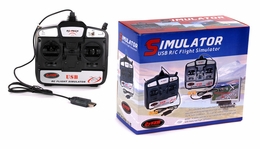
Supported controllers:
  • Keyboard
  • Any Windows game pad
  • USB cable for connecting RC Transmitter to PC
This $20 E-Sky USB controller works very well with ClearView. You can  get one from E-Bay. For more details, please read the controllers section in the ClearView manual  here  

In short, you can use any controller that can be recognized by Windows as gamepad. You can find USB cables on e-bay here for about $6. Some Blade CP and Walkera 6 ch. transmitters need a special cable from here.
 
Online stores where you can get USB transmitter cable and ClearView demo CD:
 
United States:
Mile High Wings 
Sim Blaster
RC-Gadget USB Interface
 
Italy:
ModelHobby-Flight 
 
 
Controller Setup Examples:
 
Here is a good quality Saitek gamepad that can be used:
 
 
Here is how the Saitek controls should be assigned in Setup screen:


To verify that your controller or USB cable is recognized by Windows, select "start", then "control panel", and then "game controllers". If your controller shows there, it can be used with ClearView.
 
Note: The infrared receiver for remote control on computers with Windows media center can interfere and prevent ClearView from recognising the USB cable. In this case, disconnect the infrared remote control receiver before starting ClearView.
 
The PIC Serial cables do not show on this window. For the serial cable, you must start ClearView and go to the Controllers screen, where you will find the cable listed on one of the com ports. Make sure you have the cable plugged in and Tx is On before starting the simulator.


You will get the best results using your own RC radio transmitter to control the simulator. As we allready mentioned, USB and Pic Serial cables can be used with equally good results.


Picture of Milehighwings adapter
 

GWS FSM001 for GWS Tx
GWS FSM001A for Futaba/Hitec
GWS FSM001B for JR
 
Here is example setup for USB cable connecting real RC Tx to PC:


If you computer has a serial port, any PIC serial cable works well with ClearView. Here is example setup for a serial cable connection:
 
 
Some radios are only four channels. You still can use them by assigning keyboard keys to Idle-Up and Throttle Hold as shown in this sample setup screen:


If you have questions about what cable to use, please e-mail support@rcflightsim.com and we will help.